To edit a ToDo task, click the Edit button, or right-click on the task list and select Edit ToDo Task, or double-click on the task.
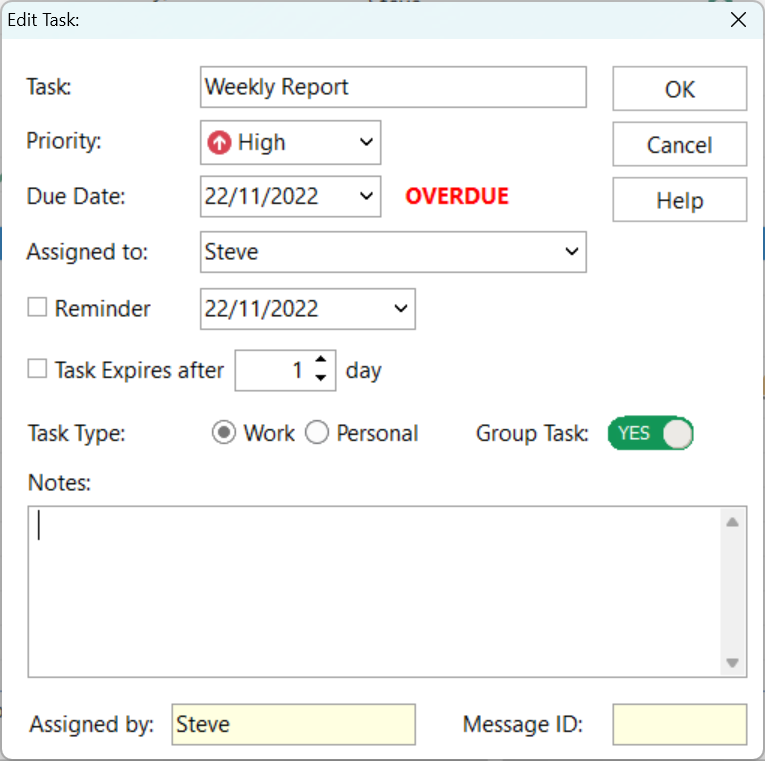
In this example, the task has a priority of High and is overdue. Tsk tsk. It's also a Group Task.
Control |
Description |
Task |
Name or description of the task. |
Priority |
Low, Medium or High. |
Due Date |
You can optionally set a due date. Once the due date has passed, the due date will appear as red text. |
Assigned to |
A new task will automatically be assigned to you. If you have access to the To Do Lists of other users, you can assign a task to one of them. |
Reminder |
You can optionally set a reminder for a specified time. |
Task Expires After |
You can set tasks to expire by checking this box and entering the number of days. Once a task has expired it |
Task Type |
You can set a task to be work-related or personal. |
Group Task |
When set to Yes, the task will be accessible by everyone who has access to your To Do List. This allows anyone in your "group" to perform the task. |
Notes |
Notes can be added to this field. If this is a Group Task then everyone in the "group" can access the notes. |