Importing Your PhoneSlips Data


Importing Your PhoneSlips Data |
|
|
What is the Data Migration Tool?
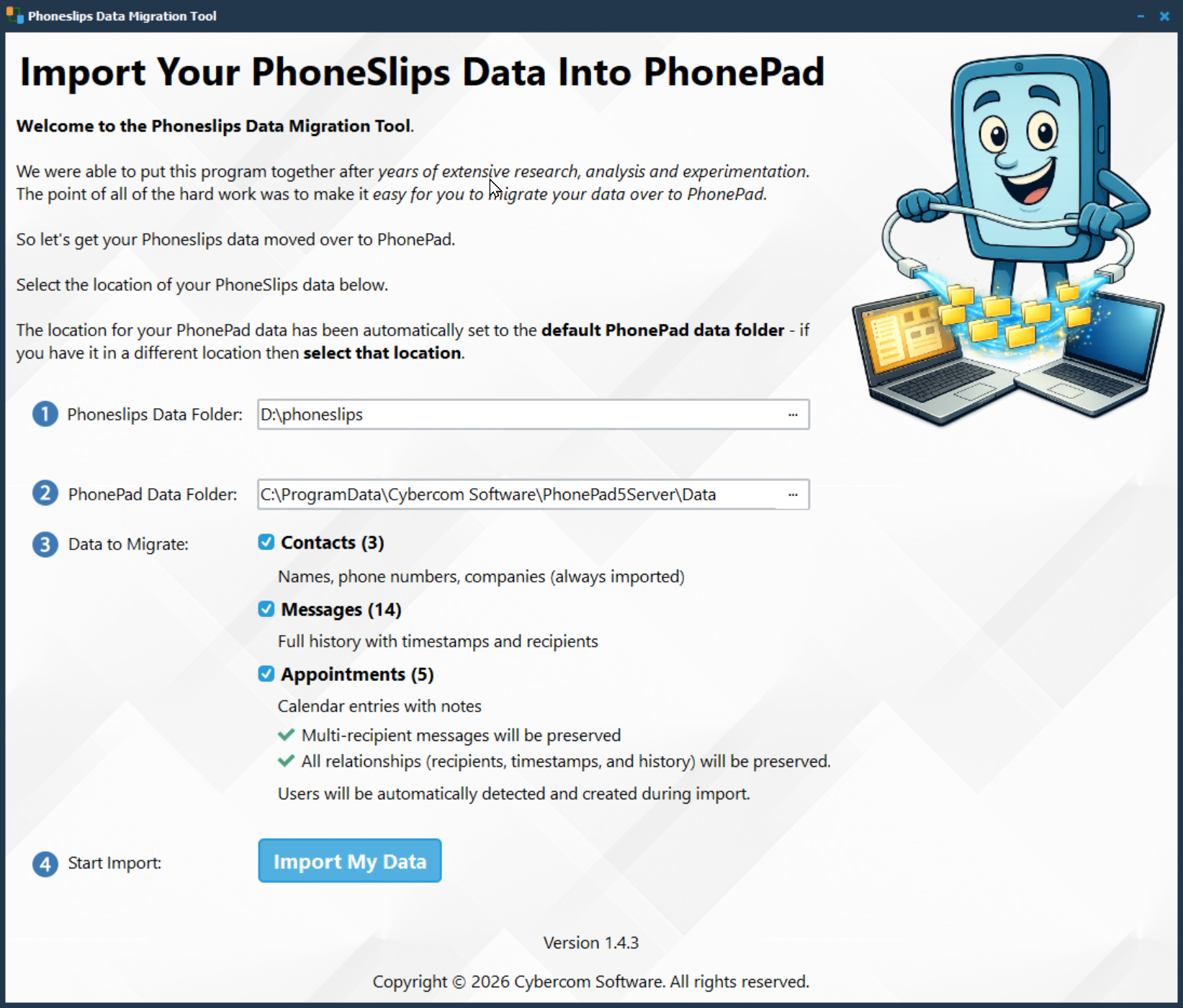
The Phoneslips Data Migration Tool allows you to import data from PhoneSlips) directly into PhonePad. No CSV files to worry about.
It’s designed to bring your existing contacts, messages, and other data into PhonePad — without messy spreadsheets or manual re-entry.
What can be imported?
Depending on the version of the tool, you can import:
•Contacts •Messages •Appointments •Users
Key features
Smart Preview
Before importing, you can:
•View all detected data •Browse it in a structured grid •Select exactly what to import
Duplicate Detection
The tool automatically:
•Identifies potential duplicate contacts •Groups related records (e.g. same company) •Helps you avoid cluttering your database
Selective Import
You are in full control:
•Import everything •Or choose specific records only
Direct Import (No CSV Required)
Data is imported directly into PhonePad’s database:
•No intermediate files •No formatting headaches •No risk of broken imports
How it works
1.Launch the Data Migration Tool 2.Select your source data files 3.The tool analyzes and loads the data 4.Review the data in the preview screens 5.Select what you want to import 6.Run the import
Done. Your data is now in PhonePad.
Example use case
You’re moving from PhoneSlips to PhonePad.
Instead of:
•Exporting to CSV •Cleaning data manually •Re-importing and fixing errors
You simply:
•Load your PhoneSlips files •Review the preview •Import directly
Important notes
•Original data is not modified •You can review everything before importing •Duplicate detection is assistive, not automatic deletion
Why use it?
•Saves hours (or days) of manual work •Preserves your existing data •Makes switching to PhonePad painless
|